svala`s animations: 101 prt.3/3
Nov. 22nd, 2012 01:46 am![[personal profile]](https://www.dreamwidth.org/img/silk/identity/user.png) kj_svala posting in
kj_svala posting in ![[community profile]](https://www.dreamwidth.org/img/silk/identity/community.png) over_thehills
over_thehillsThis is the 3rd, and last, part of my "svala`s animations: 101" tutorial.
I`ll show you how I get this animation done:
(uhhh, it`s Dean, again. I can´t help myself, this scene is soooo badass!Dean, in slow mo *purrs*
So, you have your caps done, waiting to be used (as explained in prt.1)
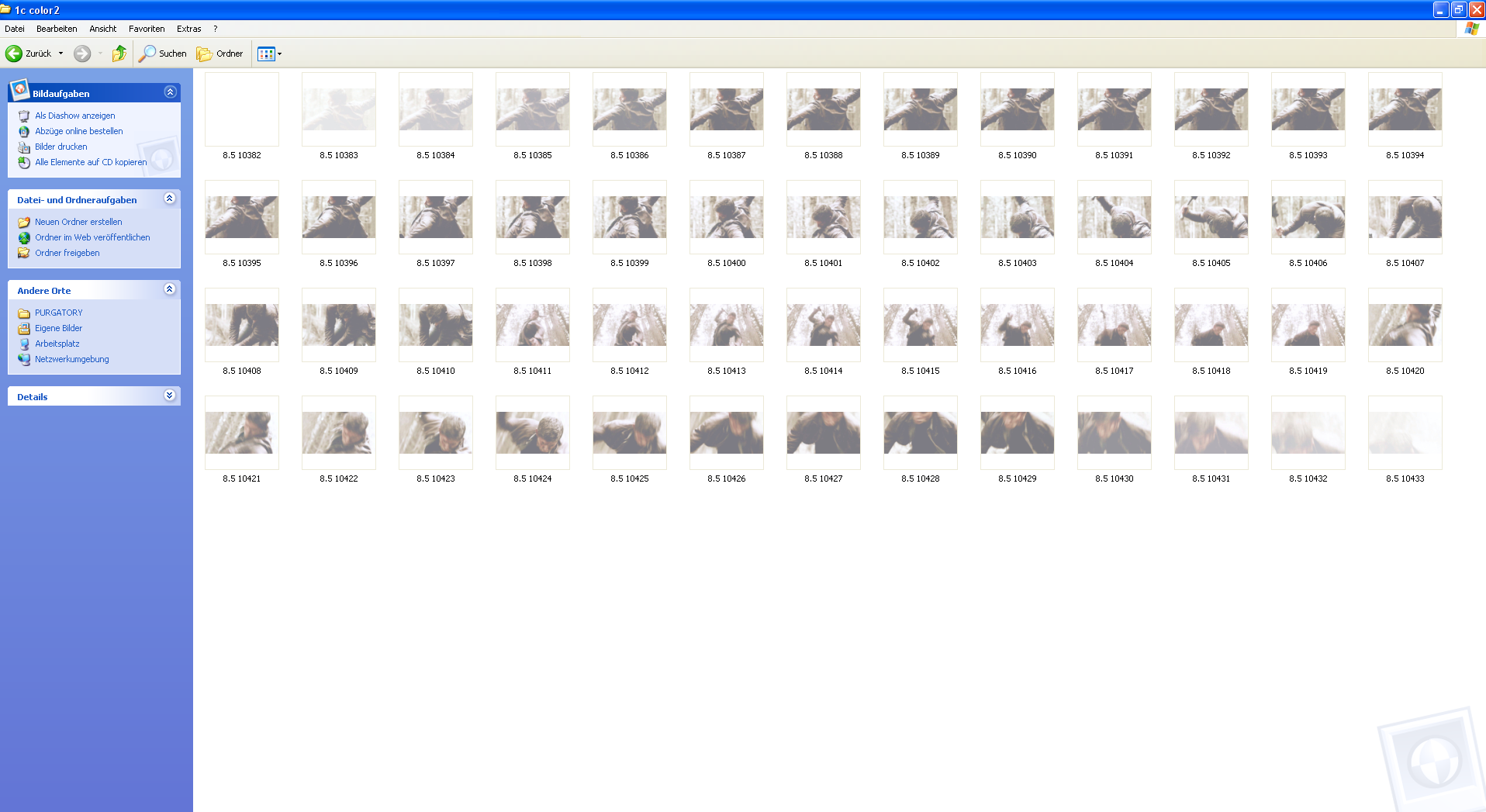
This is my folder
 |
As you can see, I`ve already added the white fade in/fade out (as explained in prt.1), the only thing that`s missing, compared to the finished animation, is the brush that`s sitting on top of everything
to get this done, you drag and drop one of your animation images into PaintShopPro, go to LAYER - add a new RASTER LAYER on top of the image.
open your brush tool, choose a brush and color, then slap it on the raster layer.
When you´re happy with the result, delete the background image. This leaves you with an empty layer, empty except for the brush.
Save this image as a PNG !
(you need the transparent background, the PNG file gives you the transparent background)
That´s all you have to do in PaintShopPro.
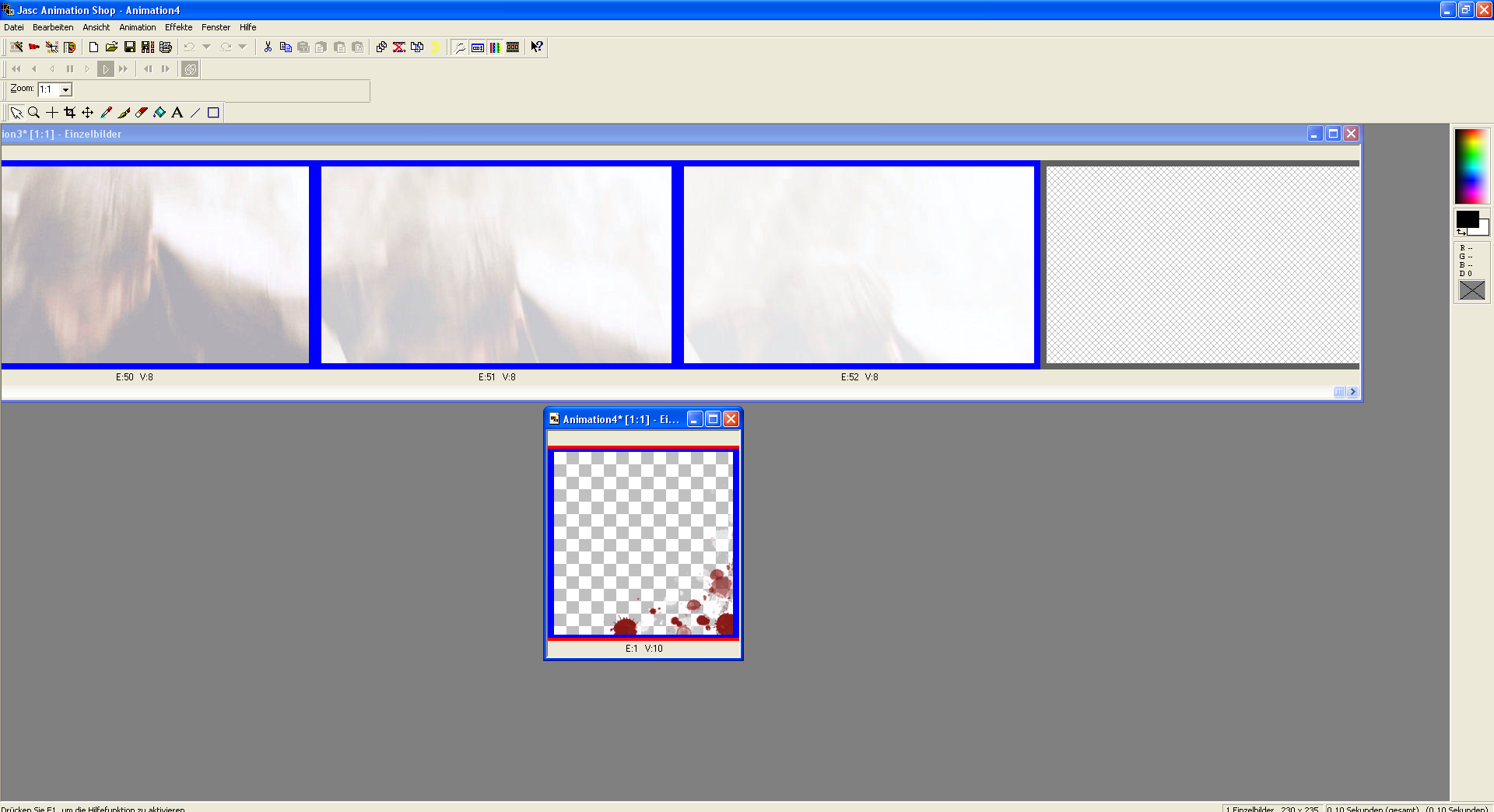
Copy the PNG image in PSP, open AnimationShop3 (as explained in prt.2), open all of your animation caps (as explained in prt.2), and past the PNG image as a new animation into AnimationShop (you can do so by right clicking on the empty background of AnimationShop, then you`ll see "paste/insert as new animation", click on that, done. OR, you click on the empty background of AnimationShop, hit CTRL+V, done
Right click on the new PNG brush animation frame, select "Frame Properties" and check the setting. You want the number to match the number you choose for your main animation (mine is set to 8). Hit OK. If it doesn´t match, change it, then hit OK
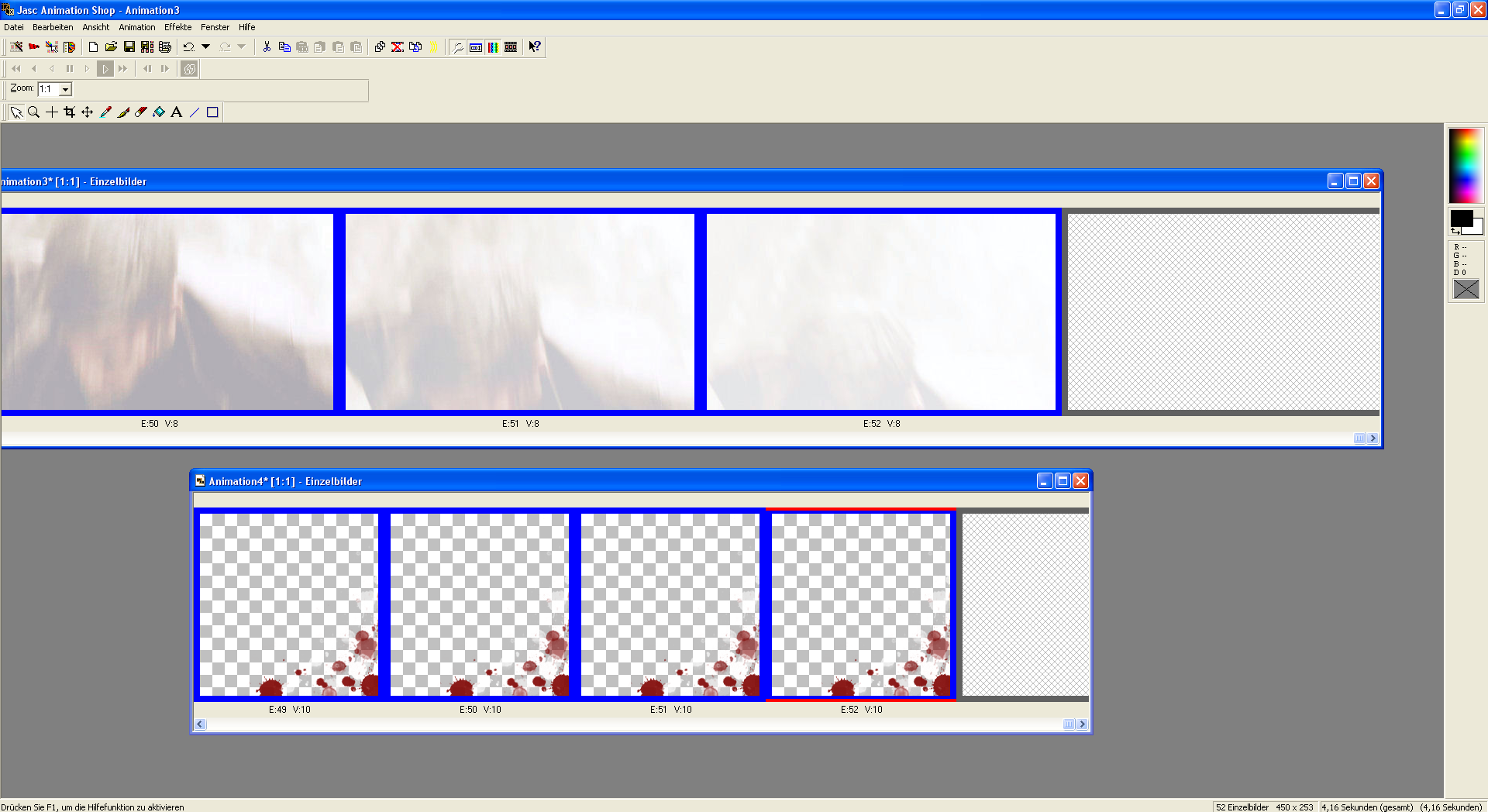
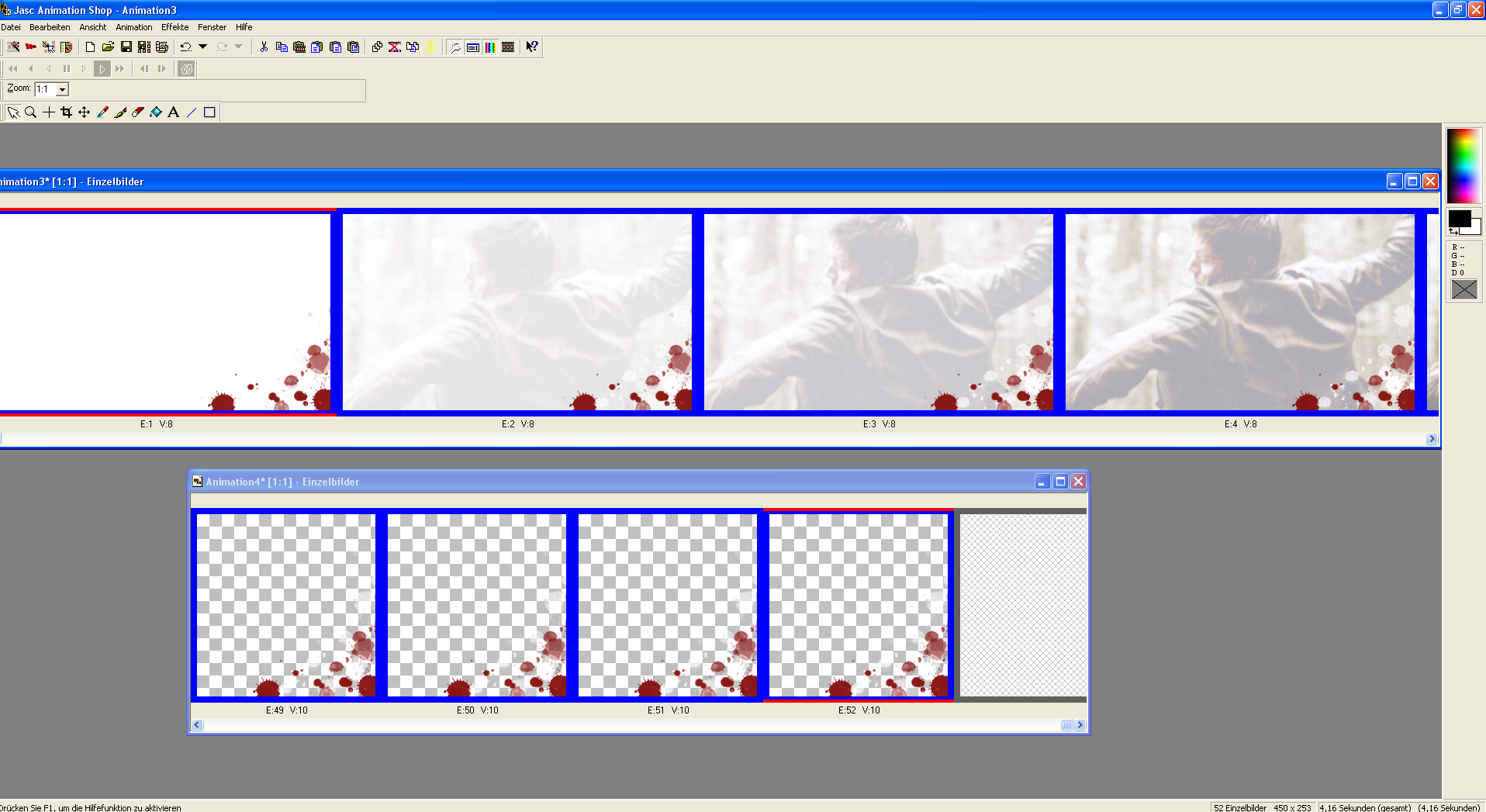
Of course the animation includes more than one frame, so go to the end of your animation, and check how many frames you got.
 |
These are 52 frames, but only one lonely brush frame, not cool. To change this, right click on the brush frame, select "DUPLICATE". Repeat this step until you´ve got a matching number. If you end up with one or two frames too many at one point, just right click on a frame, choose "DELETE" until the numbers match.
 |
Now you`ve got all the frames need for the animation
- select the brush animation (click on the blue frame that´s on top of the animation frames) go to FILE - SELECT ALL - FILE - COPY
- select the Dean animation (click on the blue frame that´s on top of the animation frames) go to FILE - SELECT ALL - FILE - PASTE - INTO SELECTED FRAME
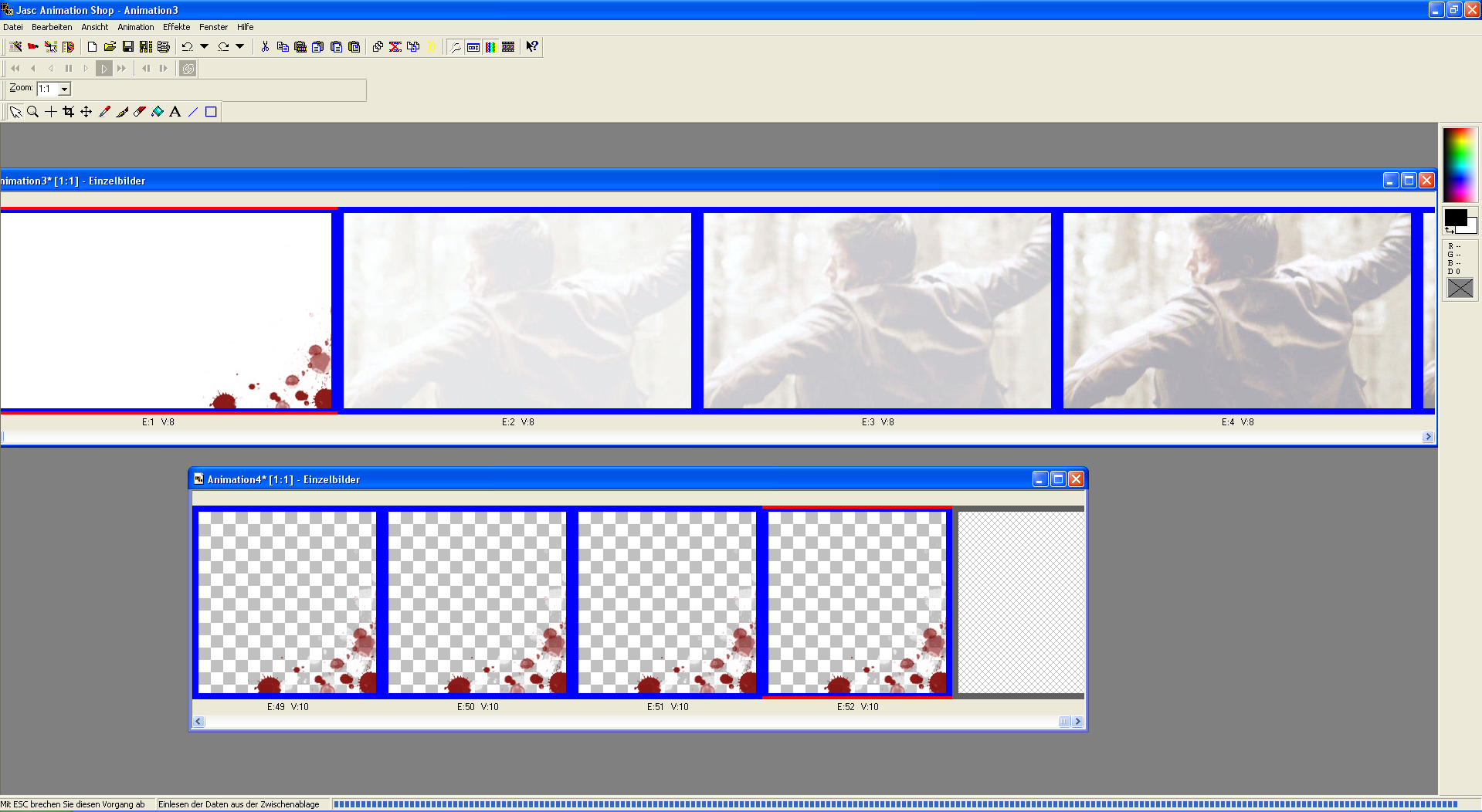
then you`ll get this
 |
The brush animation will show up in one of your selected main animation frames. It kind of hovers on top of the main animation. As long as it´s like this, you can move it around (using the mouse). Once you`re happy with the position of the brush, keep it in position, and click on the animation frame.
Ohhhh look *cue bells ringing* it`s a MIRCALE, the brush shows up in all of your main animation frames
 |
actually, it`s not a miracle, because we`ve told AnimationShop to copy/paste the brush layer, tehe.
Preview the animation, if you`re happy with what you got, save it as a gif. file (as explained in prt.2), done.
Of course you can add pretty much everything on the raster layer we`ve created in PaintShopPro.
Like a brush and text:
(since I`ve called Dean a badass in this scene, why not do this? brush and text)
you can add a brush, a text, a frame, a border, a tube aso...
NOTE: Of course you could get this done upfront already, when you create the script for the animation (as explained in prt.1) Then you don`t just record a color change aso, but the brush and/or the text also. BUT, most of the time I decide what to do with an animation once it`s open in AnimationShop. IF I include the brush and the text in the script, I can`t change this anymore. Only if I start all over, which I prefer NOT to do.
ohhh, yes, and there´s the export/import feature in AnimationShop
So, I`ve got all of my animation caps open in AnimationShop, but then I think: "hmmm, this could use a flash inbetween, to make it look even better"
I *could* close the animation, got back to my main cap folder, drag and drop the selected frames for the flash into PSP, add the white fade in and/or fade out (as explained in prt.1), save and re-open everything in AnimationShop (and this I do, sometimes. But only if I have only one scene, from one folder)
Or, I use the export/import feature (I can´t provide any screecaps for this, my flash player has decided it´s fun to crash the Photobucket upload *duh*)
In AnimationShop, right click on the selected animation frame you want to work on, choose "EXPORT FRAMES TO PAINT SHOP PRO"
this will open the frame in PaintShopPro, you don´t have to do anything.
Work on your picture in PSP (I always use it ONLY to add the white color layer for the flash), merge your layer, right click on your picture, choose "EXPORT BACK TO ANIMATIONSHOP" (or so)
this will re-open your, new and improved, picture in AS3. In the same position as it`s been before.
IMPORTANT: before you can export the next frame, you need to cut the connection of the previous frame. Right click on the frame in AS3, and choose (something like) "cut export connection", only then you´re able to export the next frame into PSP.
And now I`m done.
This is it, my *crazy and useless* way of getting the animations done. It works for me just fine. By now I`m used to it, and I`m able to finish an animation in no time.
Again, everything is as clear as mud? great, that´s a job well done *snort*
question? surgestions?
- prt.1 can be found here: @OverTheHills
- prt.2 can be found here: @OverTheHills